Editor
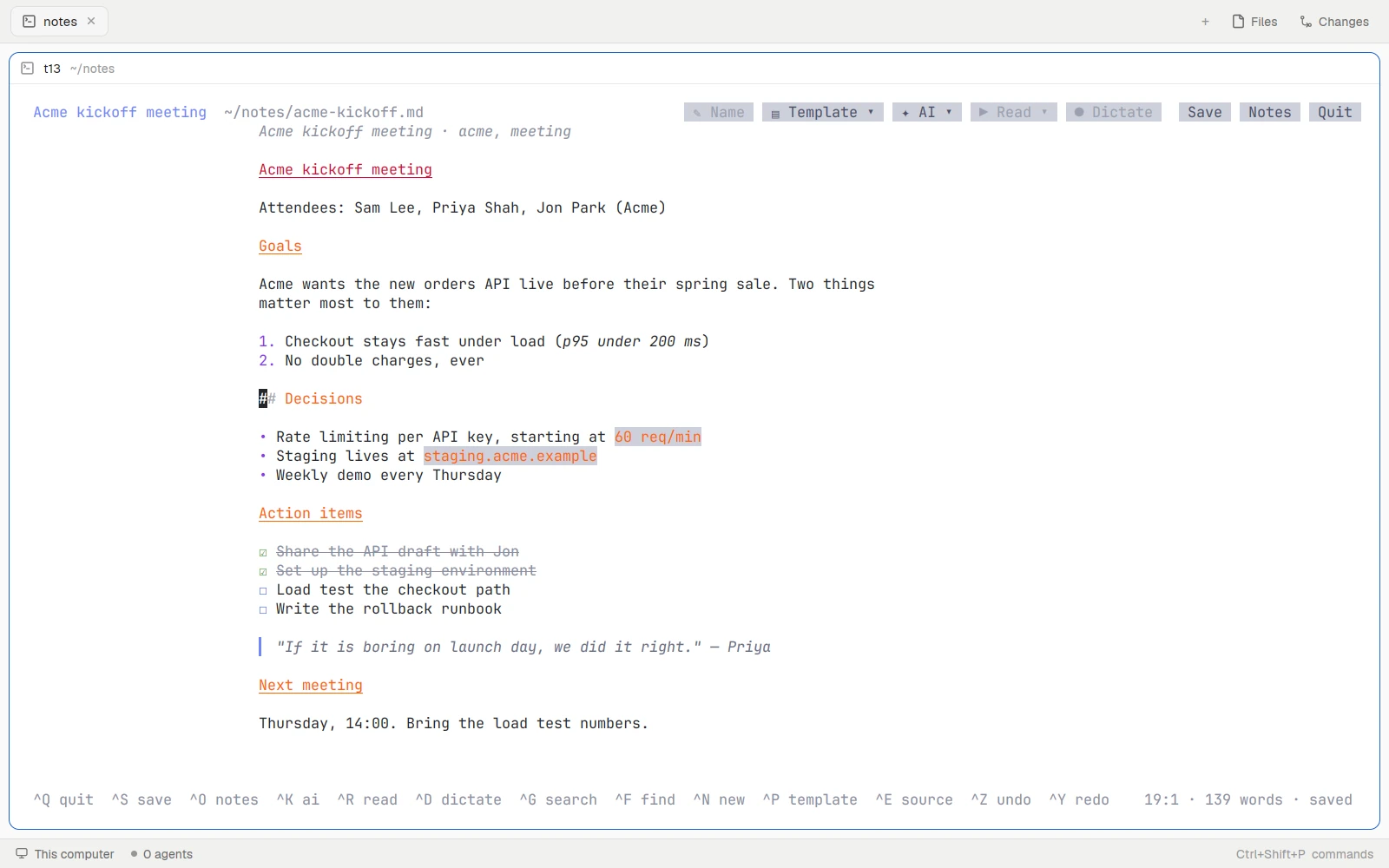
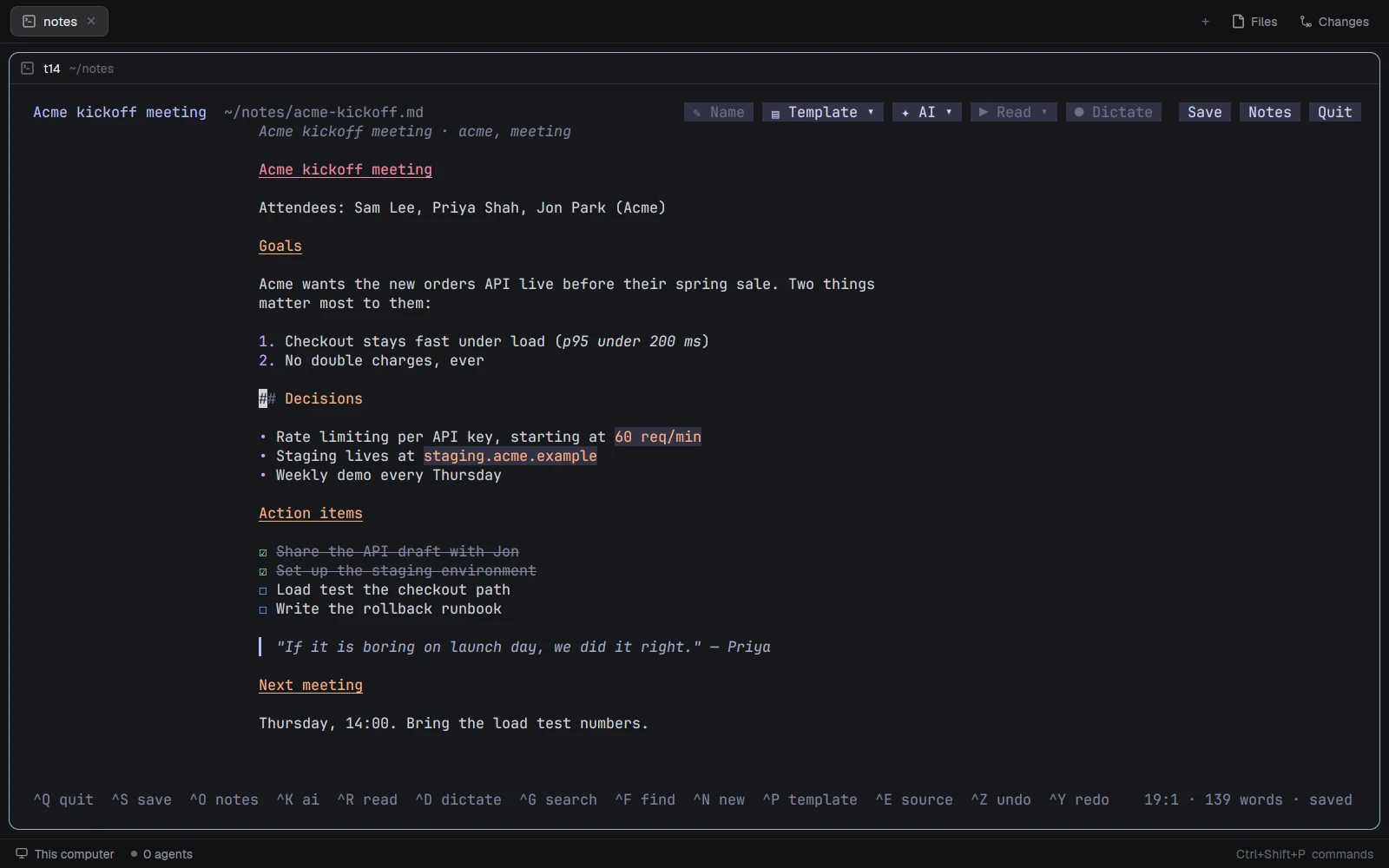
Only the line you are on shows its source.
A note is one Markdown file. Headings, lists, tasks, code and quotes render in place as you leave each line.
- Plain files, nothing hidden.
- Templates and prompts are files too.
Lumbridge Work
Gated · opens on November 13, 2026Lumbridge Notes is a Markdown note editor that runs in any terminal and shows the formatted note while you type. Each note is one plain file in a folder, so people, scripts and agents can all read and write the same notebook. AI prompts, reading aloud and dictation are optional and use servers you name.
Tour
Editor
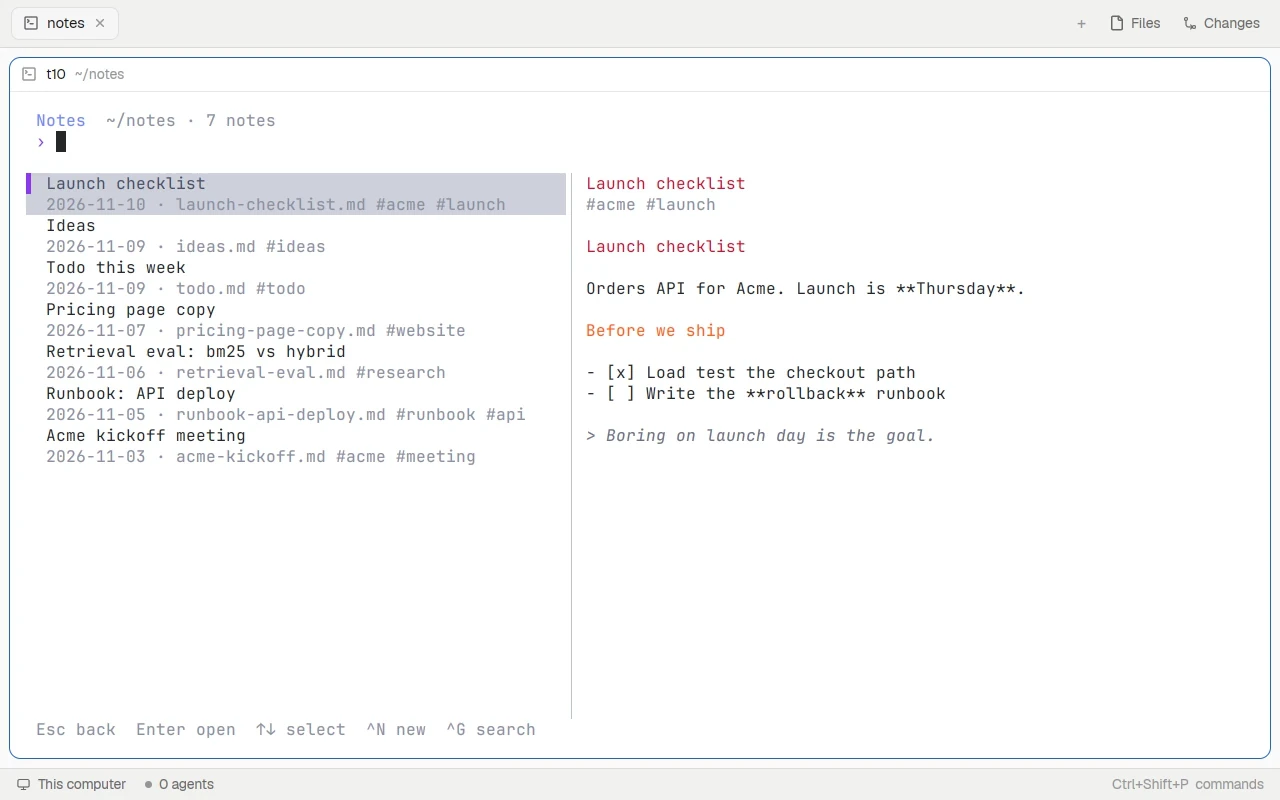
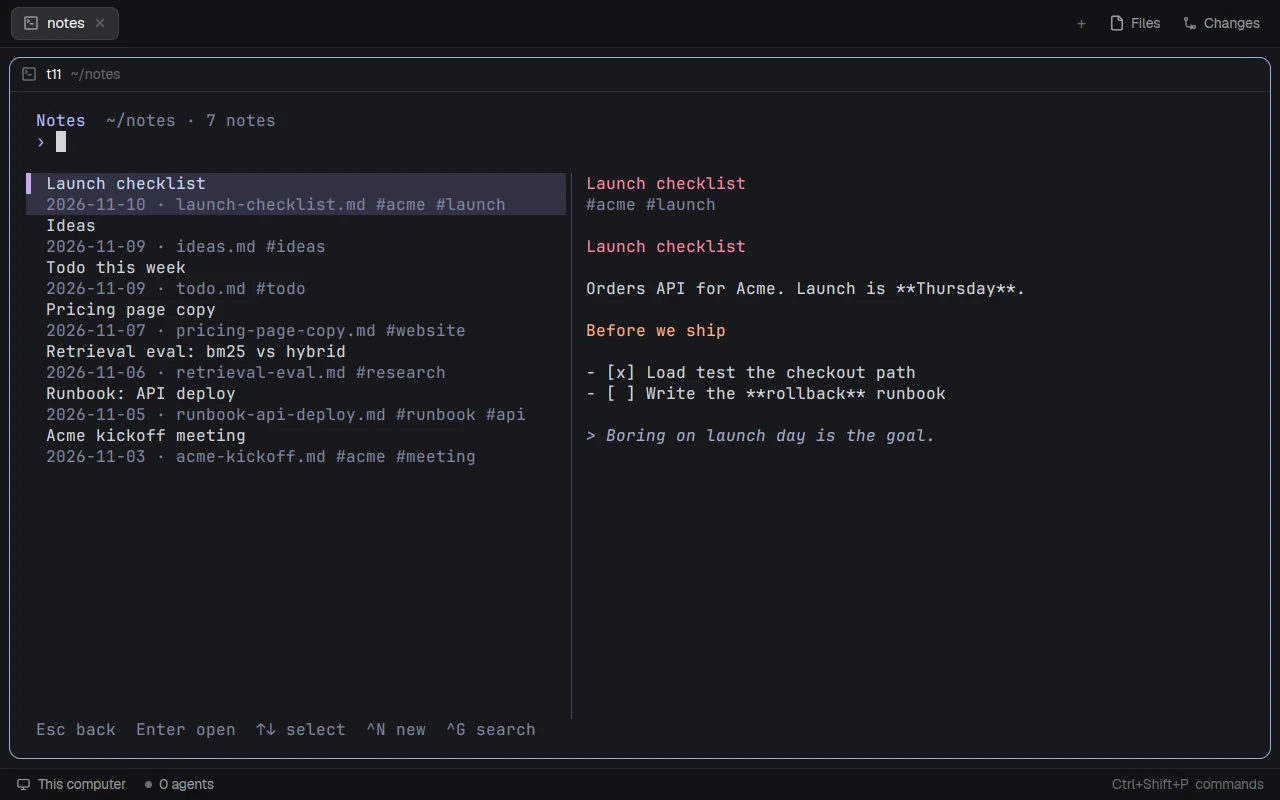
A note is one Markdown file. Headings, lists, tasks, code and quotes render in place as you leave each line.
Search
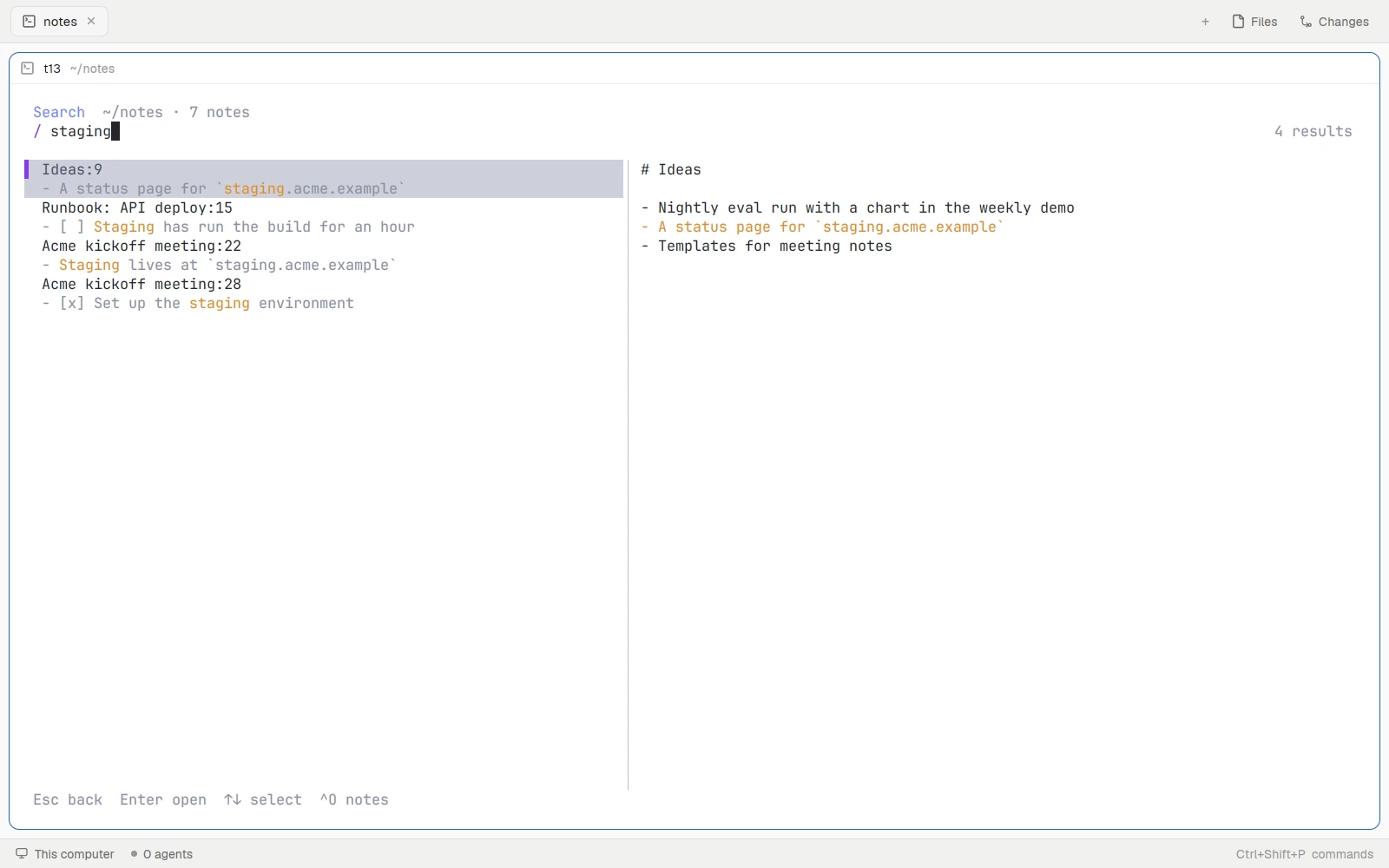
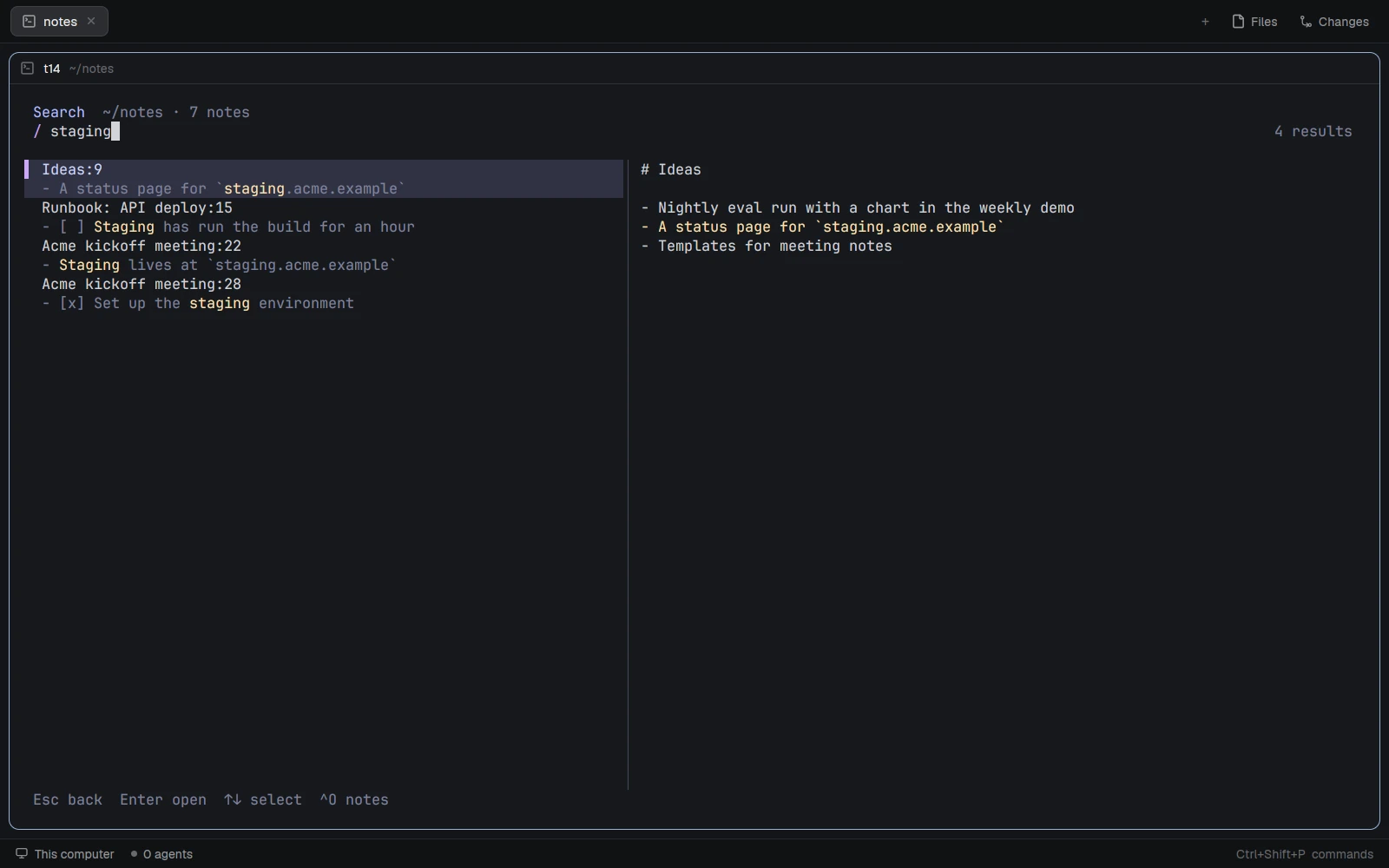
Each hit shows the note and the line. Shown in both themes.
01 · What it does
Headings, lists, task boxes, tables, quotes and code are drawn formatted. The line under the cursor shows its Markdown source, and a source mode shows the whole file raw. Undo, redo, find and mouse clicks work as you expect.
One Markdown file per note, with optional TOML front matter for title, tags and created date. YAML-style front matter is tolerated. Saves are atomic, a change made by another program is detected, and unsaved text goes to a recovery file if the pane closes.
Ctrl-O opens a fuzzy picker over the notebook, newest first. Ctrl-G searches the full text of every note. Ctrl-N starts a new note, and a note’s title, heading and file name can be changed together.
Templates and AI prompts are Markdown files inside the notebook, under .lumbridge/templates and .lumbridge/prompts. A starter set is written once: daily, meeting, idea, project and agent brief templates, and prompts such as summarize and extract tasks. Add your own, or let an agent add them.
Ctrl-K runs a prompt on the note or the selection against any OpenAI-compatible chat server. The answer streams into a panel under the note, and you choose to replace, insert or append it; Ctrl-Z undoes it. Untitled notes can be named automatically. With no server set, the editor says how to add one.
Ctrl-R reads the note through an OpenAI-style speech endpoint and marks the lines being read. Ctrl-D records from the microphone and types what you said, either after you stop or word by word over a streaming connection.
02 · How it works
The crate is a library and one binary. The core modules do no terminal I/O, which is why the note format can be tested byte for byte.
A buffer with cursor, selection and undo; Markdown-aware edits such as list continuation and task toggling; a per-line parser that maps rendered spans back to source; and a layout pass for soft wrap and scrolling.
Loading, atomic saving, front matter and the notebook folder live in one module. A golden test suite pins the note format, including line endings, byte order marks and odd front matter, so the editor and the terminal’s notebook drawer always agree. A new notebook gets an AGENTS.md guide for agents that write notes.
Application state handles keys and mouse; rendering is a pure function from that state to a ratatui frame. Copy uses the terminal’s OSC 52 clipboard, so it also works over SSH. NO_COLOR and a light or dark theme variable are honoured.
AI, speech and dictation jobs each run on their own thread, so typing never waits on the network. HTTP goes through curl and audio through the system’s command-line audio tools. A result for a job you have canceled is dropped.
03 · Use it
There is one command. Give it a file to edit, a folder to pick from, or nothing to open the default notebook.
cargo install --path .
lumbridge-notes                          # pick from ~/notes
lumbridge-notes --dir ~/work-notes       # another notebook
lumbridge-notes ~/work-notes/plan.md     # created on first save
LUMBRIDGE_NOTES_THEME=light lumbridge-notes --dir ~/work-notes
ls ~/work-notes/.lumbridge/templates ~/work-notes/.lumbridge/prompts

# ~/.config/lumbridge-notes/config.toml (every section is optional)
[ai]
url = "http://models.acme.example:8001/v1"
model = "brain"
auto_name = true
[speech]
url = "http://speech.acme.example:8097/v1"
04 · Docs
These pages are in the repository and open with it. Until then, the Guide covers the same ground and is readable now.
Build from source with cargo, the command line, and the notebook folder it opens by default.
Every shortcut: save, picker, search, find, source mode, tasks, the AI menu, templates, read aloud and dictation.
Markdown with optional TOML front matter, slug file names, and the golden suite that pins the format.
The [ai], [speech] and [dictation] sections of config.toml, the environment variables and the color settings.
Where they live in the notebook, their front matter, the placeholders, and the prompt actions replace, insert, append and answer.
Read the Guide chapter: Work appsRequest access to the repository
05 · Works with
Not yet
Questions
In a folder of Markdown files, ~/notes by default or the folder you pass with --dir. There is no database and no account. Templates and prompts sit in a .lumbridge folder inside the same notebook.
Nothing unless you set a server and ask. With an [ai] url set, a prompt sends the note or the selection to that server. If auto_name is on, an untitled note is also sent to be named. Reading aloud sends the note’s text to your speech server, and dictation sends your recording.
Yes. Editing, preview, the picker, search and templates need no network. The AI, speech and dictation buttons tell you how to set a server up when none is configured.
Yes. Notes are plain files, so an agent writes Markdown into the folder and the editor notices the change. A new notebook gets an AGENTS.md guide that explains the format, and agents can add templates and prompts as files.
Any Unix terminal on Linux or macOS, locally or over SSH. It is a single Rust binary. The code is Apache-2.0 and the repository opens on November 13, 2026.
Self-host it, or talk to us about setting it up with you.