Guide · Chapter 2
- Chapter 1: Start here
- Chapter 2: Install Core
- Chapter 3: A workspace: the App and the TUI
- Chapter 4: Agents
- Chapter 5: A second machine
- Chapter 6: Notes, Library and Mail
- Chapter 7: Voice and Speak
- Chapter 8: The Factory and models
Install Core
Build Lumbridge Core from source on Ubuntu, then run, list, read, attach to and type into a terminal that stays alive.
You need
- Rust, Zig 0.16.0,
just, git and a C toolchain (chapter 1) - Access to the
lumbridge-corerepository ~/.local/binon your PATH
Core is the part everything else stands on. It runs programs in terminals that keep going after you close your viewer. It has no window of its own: you use it through one command, lbc, from a shell, from an agent, or from an app.
Build and install
just install builds a release binary, copies it to ~/.local/bin, links lbc to it and restarts Core.git clone https://github.com/lumbridge-corp/lumbridge-core
cd lumbridge-core
git submodule update --init --depth 1
just install
lbc --version
lbc server status
Start it
You do not start Core by hand. The first lbc command that needs it starts a background Core for your account, and it listens on a local socket that only your user can reach. lbc server status shows whether it is up, and lbc server stop and lbc server start are there when you want them. Each terminal is held by its own small process, so restarting Core does not end your programs.
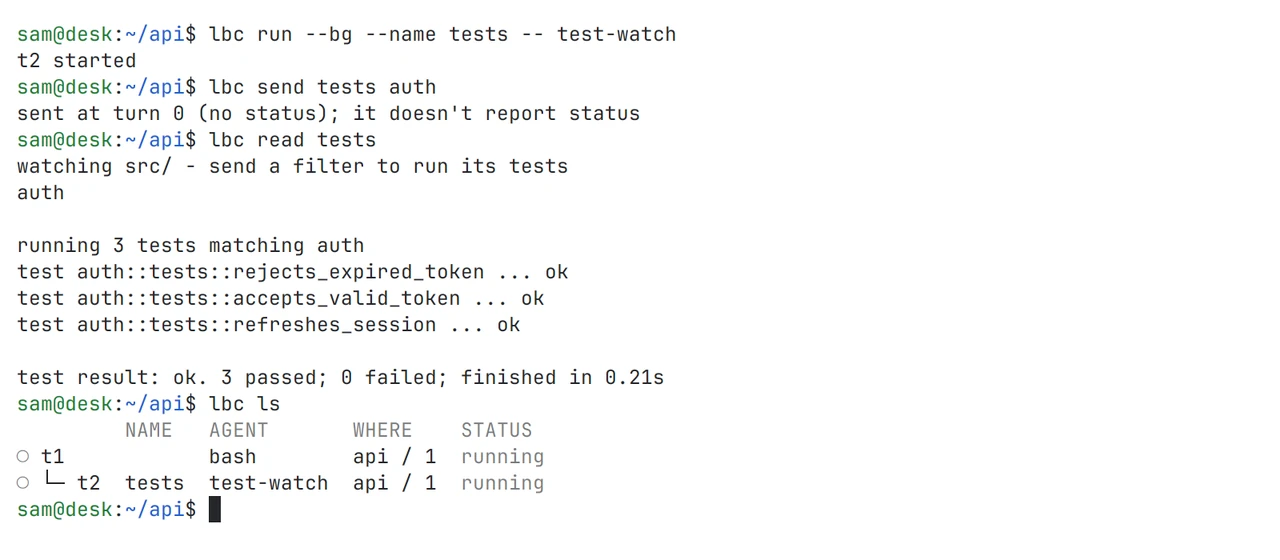
lbc command.Drawn figureRun a program and come back to it
lbc run --bg --name web python3 -m http.server 8000
lbc run --bg --name scratch
lbc ls
lbc get web
lbc read web --lines 50
lbc attach web
# ctrl+\ detaches. The server keeps running.
lbc send scratch "ls -la"
lbc keys scratch ctrl+c
lbc read scratch
lbc kill web
lbc ls --all
lbc run without --bg behaves like your shell: it streams the output and waits. With --bg it starts the program and returns at once. With no program at all it starts your login shell. A name is optional; without one you use the address Core prints, such as t7.
lbc lslists live terminals. Add--allto include finished ones, andlbc rmto remove a finished one.lbc readprints the screen, and--linesadds history above it. It never attaches or resizes anything.lbc attachputs your terminal on the program. Press ctrl+\ to detach.--observewatches without typing or resizing.lbc sendpastes text and presses Enter.lbc keyspresses named keys such asenter,esc,uporctrl+c.lbc waitblocks until a terminal stops working or exits. With--outputit returns when the program prints the text you name.
Output is plain text at a terminal and JSON when piped, so the same commands work in scripts. lbc <command> --help prints the exact arguments. The next chapter puts a workspace on top of this: the App on a desk, and the TUI in a terminal.
Parts in this chapter Lumbridge Core