Guide · Chapter 5
- Chapter 1: Start here
- Chapter 2: Install Core
- Chapter 3: A workspace: the App and the TUI
- Chapter 4: Agents
- Chapter 5: A second machine
- Chapter 6: Notes, Library and Mail
- Chapter 7: Voice and Speak
- Chapter 8: The Factory and models
A second machine
Add a machine over SSH, run and attach to programs there from your desk, and see every machine in one list.
You need
- Core on your first machine, called
deskhere (chapter 2) - A second Ubuntu machine, called
build-1here, that you can already reach withssh - SSH keys or an SSH agent, so the connection does not ask for a password each time
Each machine runs its own Core and owns its own programs. Your local Core connects to the others and brings their terminals into one list. There is no account, no relay and no pairing code: if ssh can reach a machine, you can add it.
Add the machine
ssh deploy@build-1 true
lbc machine add deploy@build-1 --name build-1
lbc machine ls
lbc machine update build-1
lbc machine rm build-1
The other machine needs lbc too. When it is missing or too old, lbc machine add asks before copying yours there; --install allows the copy without asking, for scripts. lbc machine update copies your build again later and restarts Core there without ending its terminals. lbc machine rm only forgets the machine. Its programs keep running.
What travels over SSH
- One SSH connection per machine, opened by your own
sshwith your keys, config and host checks. Passwords, codes and host-key prompts need a person at a terminal. - Core’s own protocol on that connection: terminal lists, screens, keystrokes, status events, and the commands and file edits you ask for.
- Nothing else. Programs, their history and their files stay on the machine they run on. Core opens no TCP port and talks to no outside service.
- If the connection drops, the programs keep running and your Core reconnects.
Run something there from here
lbc run --bg --on build-1 --cwd /srv/api --name tests cargo test
lbc ls
lbc read build-1/tests --lines 80
lbc attach build-1/tests
lbc exec --on build-1 --cwd /srv/api git status
lbc file read --on build-1 /srv/api/Cargo.toml --limit 40
lbc run --bg --on build-1 --cwd /srv/api --name fix claude "Fix the failing test."
lbc exec runs one command without a terminal and returns exactly what it wrote and its exit code. lbc file reads, writes and makes exact edits to files on that machine. An agent on desk uses the same commands to work on build-1.
The fleet view
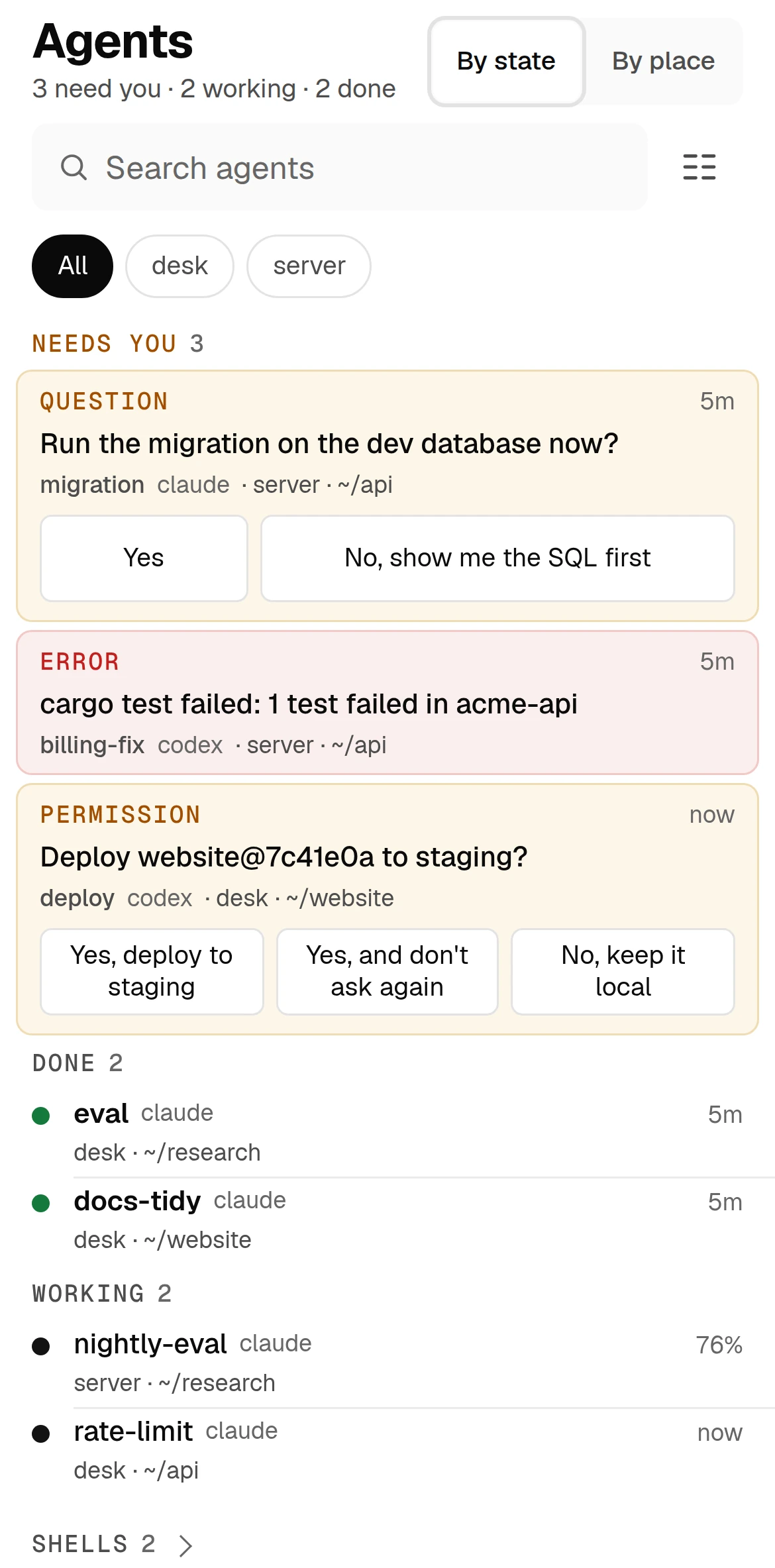
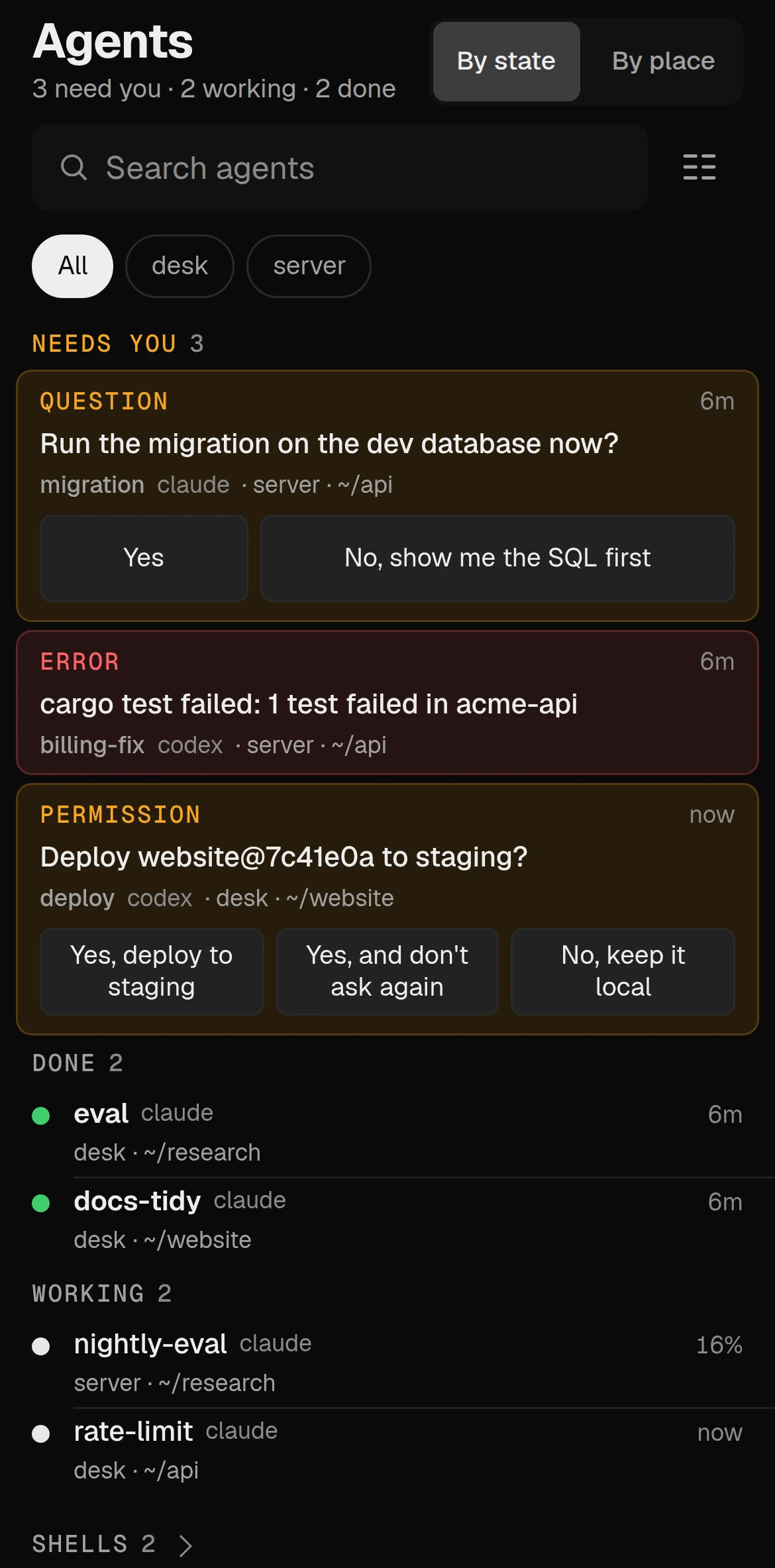
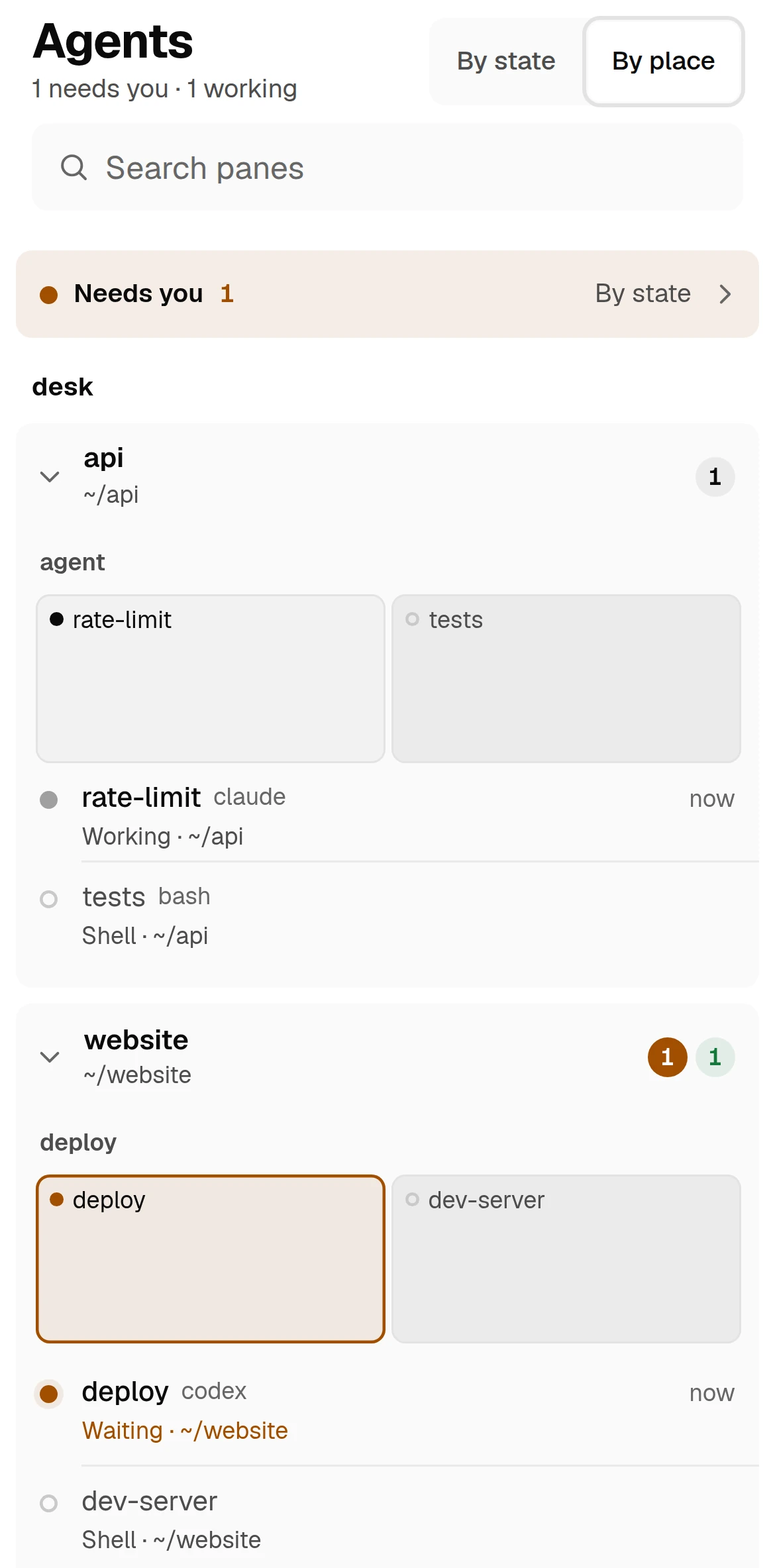
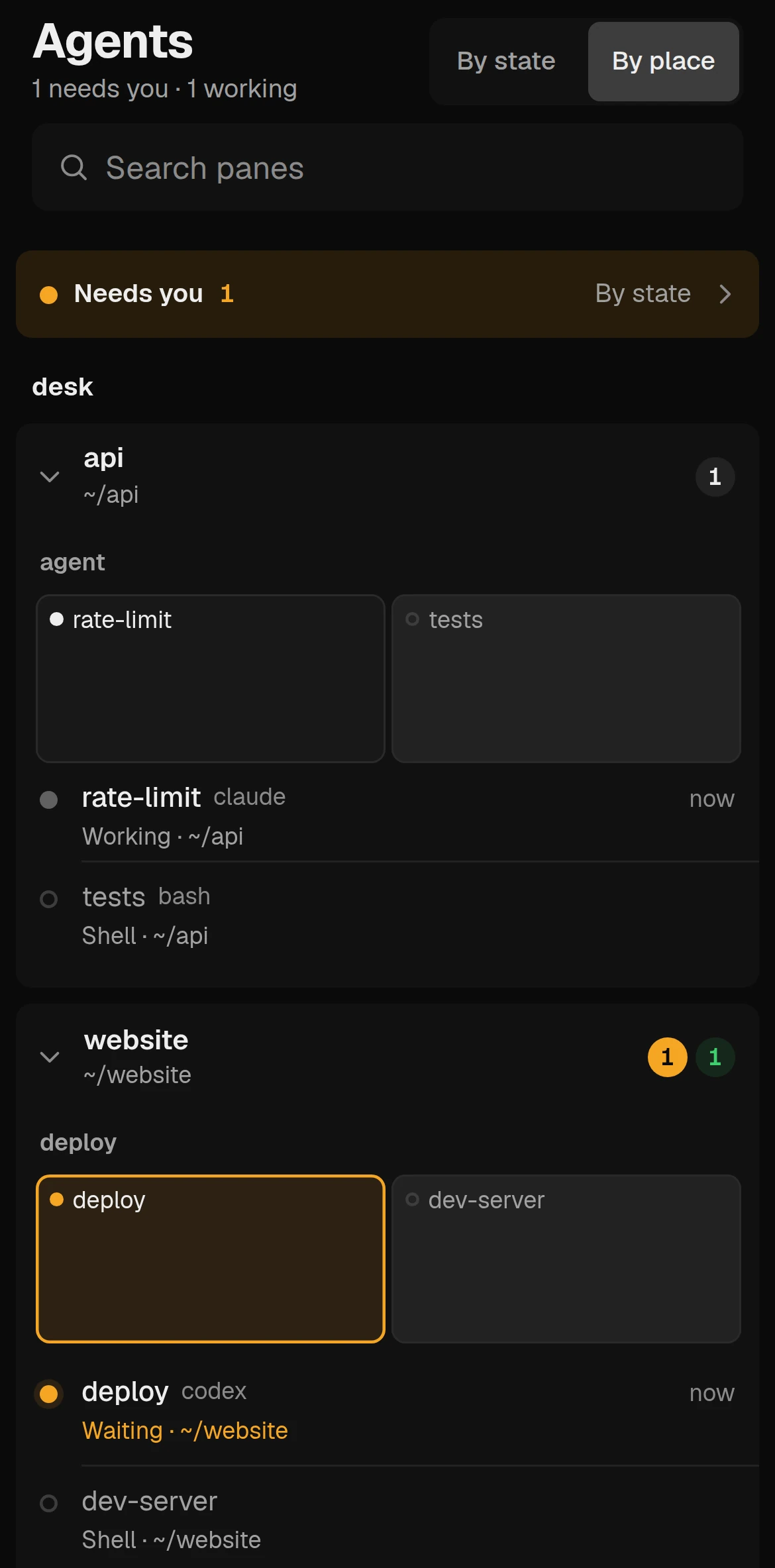
lbc ls is the plain list of every live terminal on every machine you added. In the App, add the machine under Settings, Machines, or run lumbridge-app do space.new --name api --machine build-1 --folder /srv/api. A space on a machine runs its terminals there and keeps its tabs and splits in that machine’s Core, so the work carries on when your laptop sleeps. The TUI has its own list: lumbridge-tui machine add build-1 puts that machine’s workspaces in the sidebar, and it needs the TUI built on that machine as well.
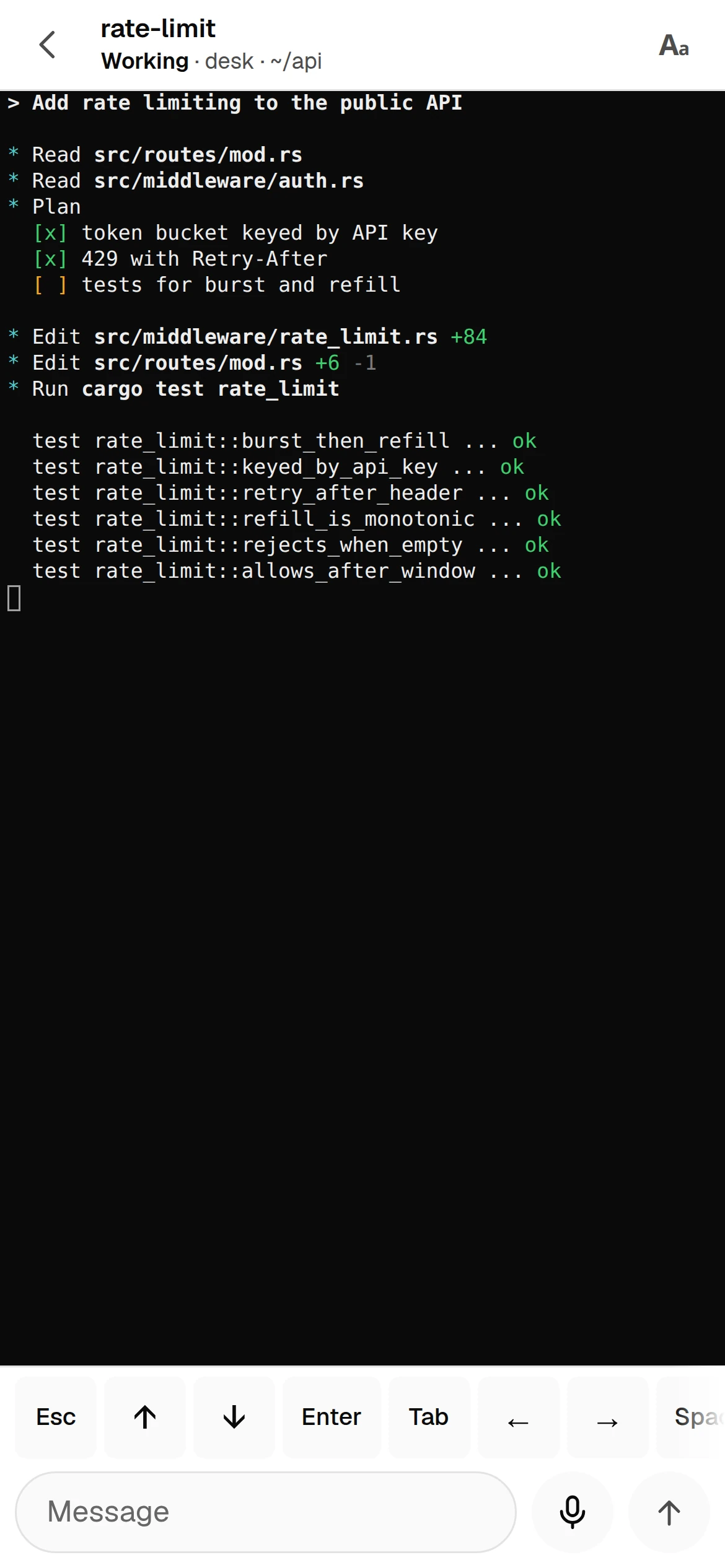
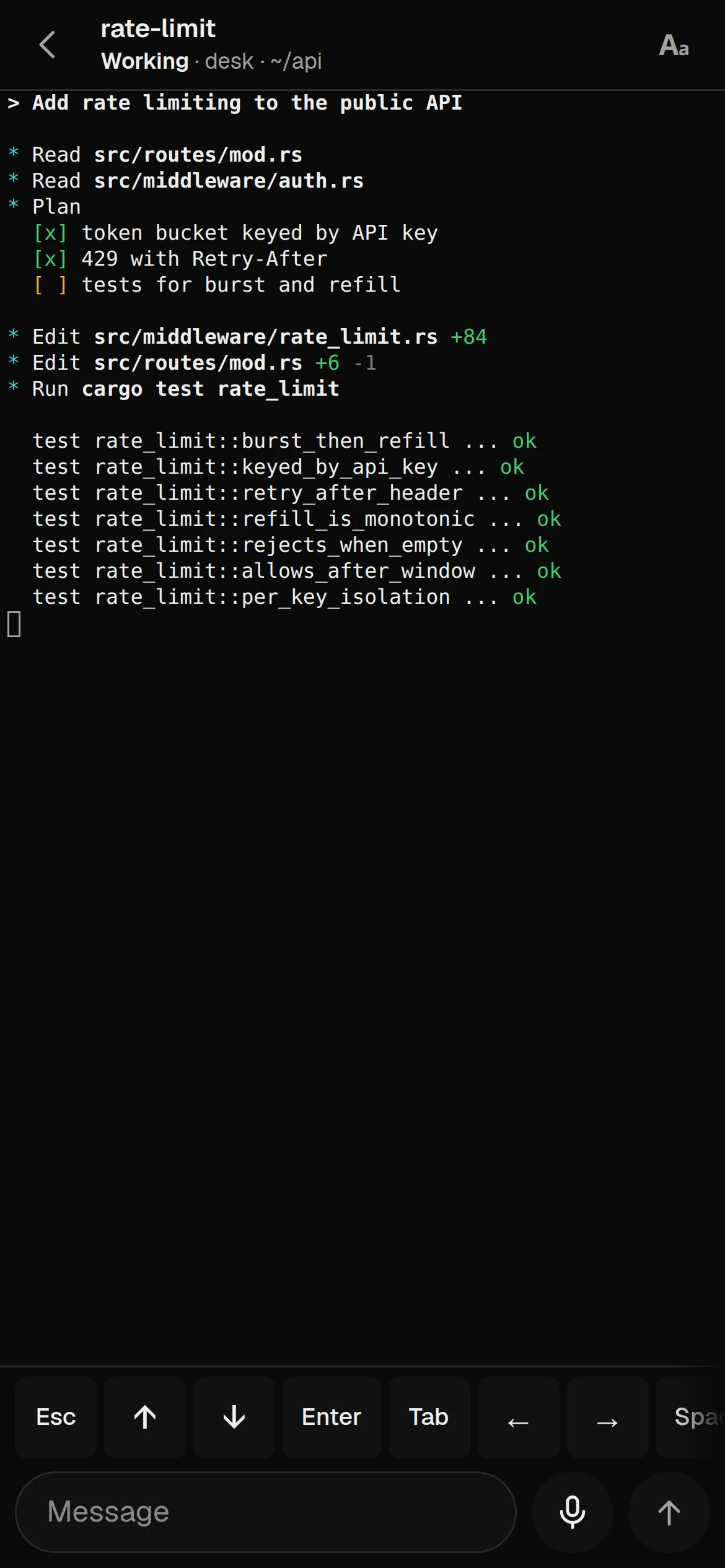
The next chapter moves from terminals to the work itself: notes, a library and mail, each built so an agent can use it safely.
Parts in this chapter Lumbridge Core · Lumbridge App · Lumbridge TUI · Lumbridge Mods · Lumbridge Mobile