Guide · Chapter 3
- Chapter 1: Start here
- Chapter 2: Install Core
- Chapter 3: A workspace: the App and the TUI
- Chapter 4: Agents
- Chapter 5: A second machine
- Chapter 6: Notes, Library and Mail
- Chapter 7: Voice and Speak
- Chapter 8: The Factory and models
A workspace: the App and the TUI
Build the desktop App and the terminal TUI, open them for the first time, and learn spaces, tabs and agent status.
You need
- Core installed and on your PATH (chapter 2)
- For the App: a desktop session on X11 or Wayland with a working Vulkan driver
- Access to
lumbridge-appandlumbridge-tui(the TUI also pulls inlumbridge-notes)
There are two ways to look at your work. The App is a desktop window for a machine with a screen. The TUI is a workspace that runs inside any terminal, which suits SSH. You can install one or both. They do not depend on each other.
Build and install the App
git clone https://github.com/lumbridge-corp/lumbridge-app
cd lumbridge-app
git submodule update --init --depth 1
cargo build --release --locked
just install
lumbridge-app
First launch: spaces, tabs and panes
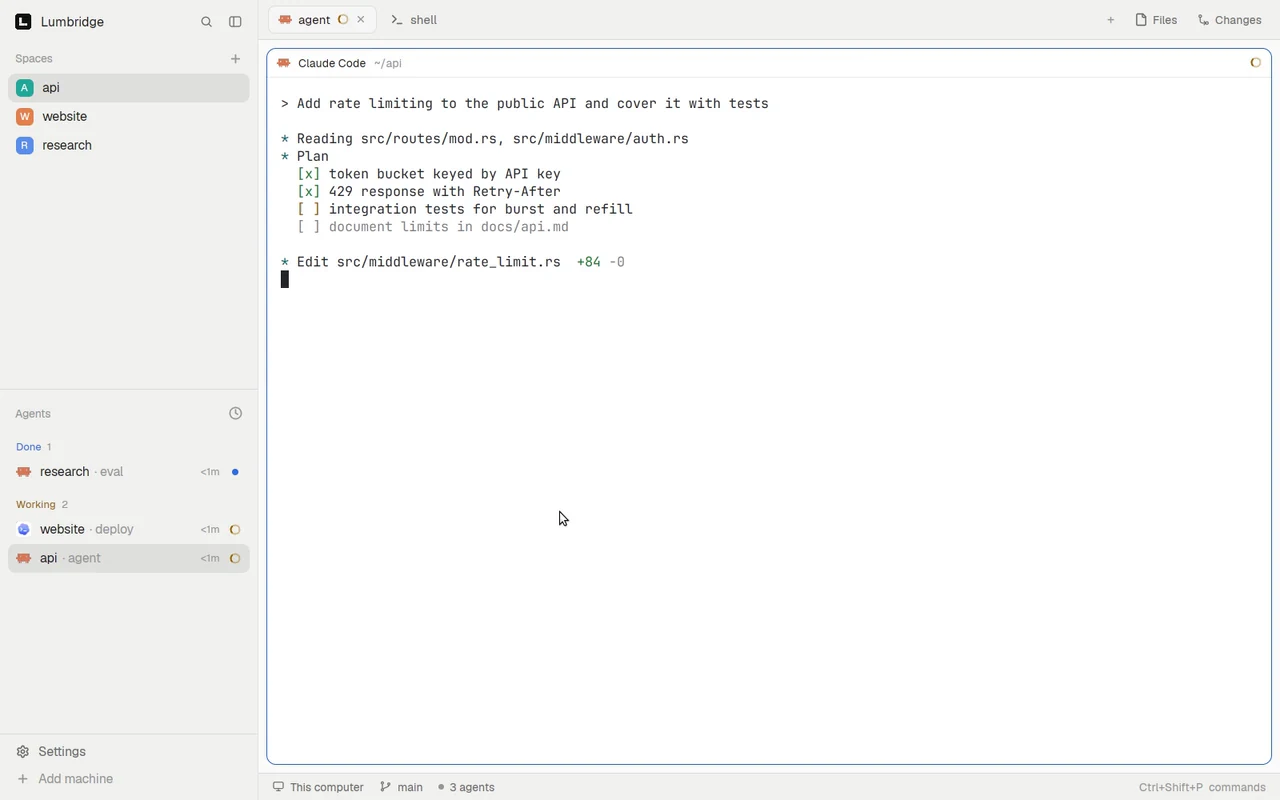
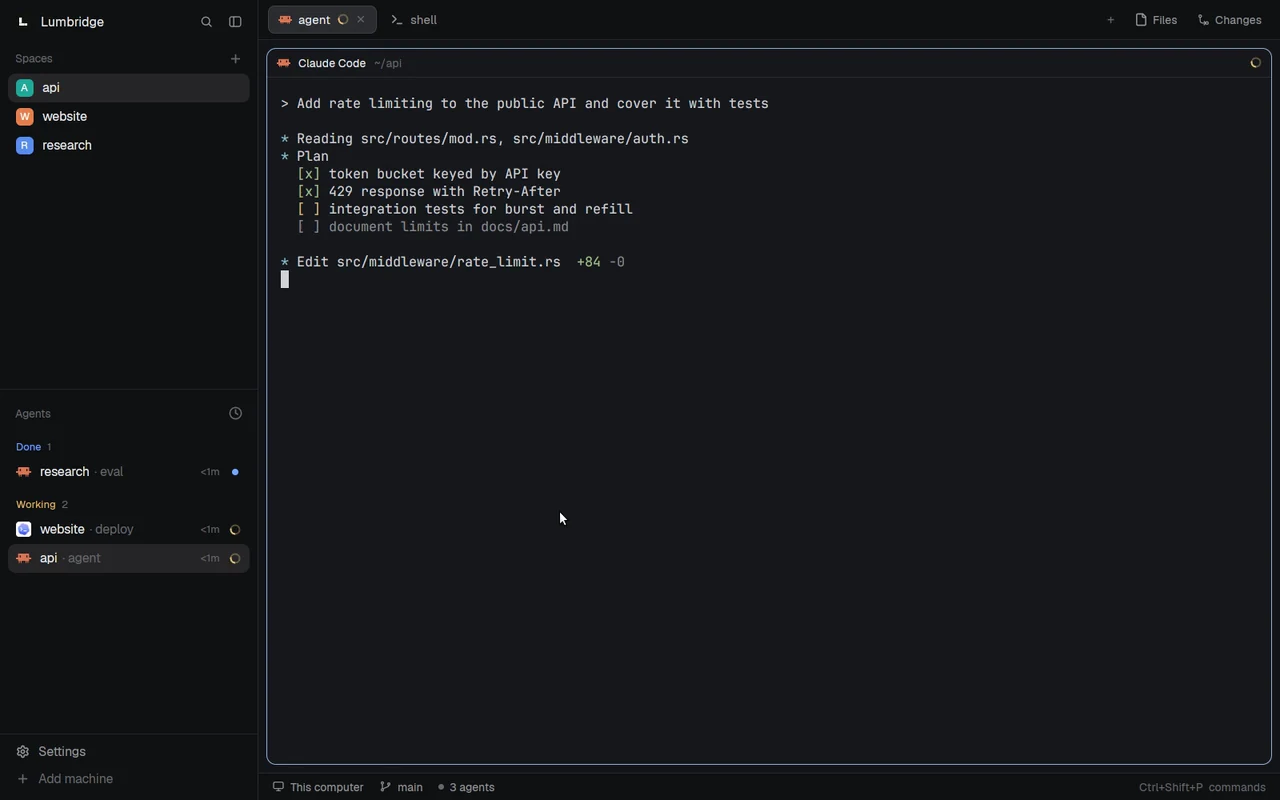
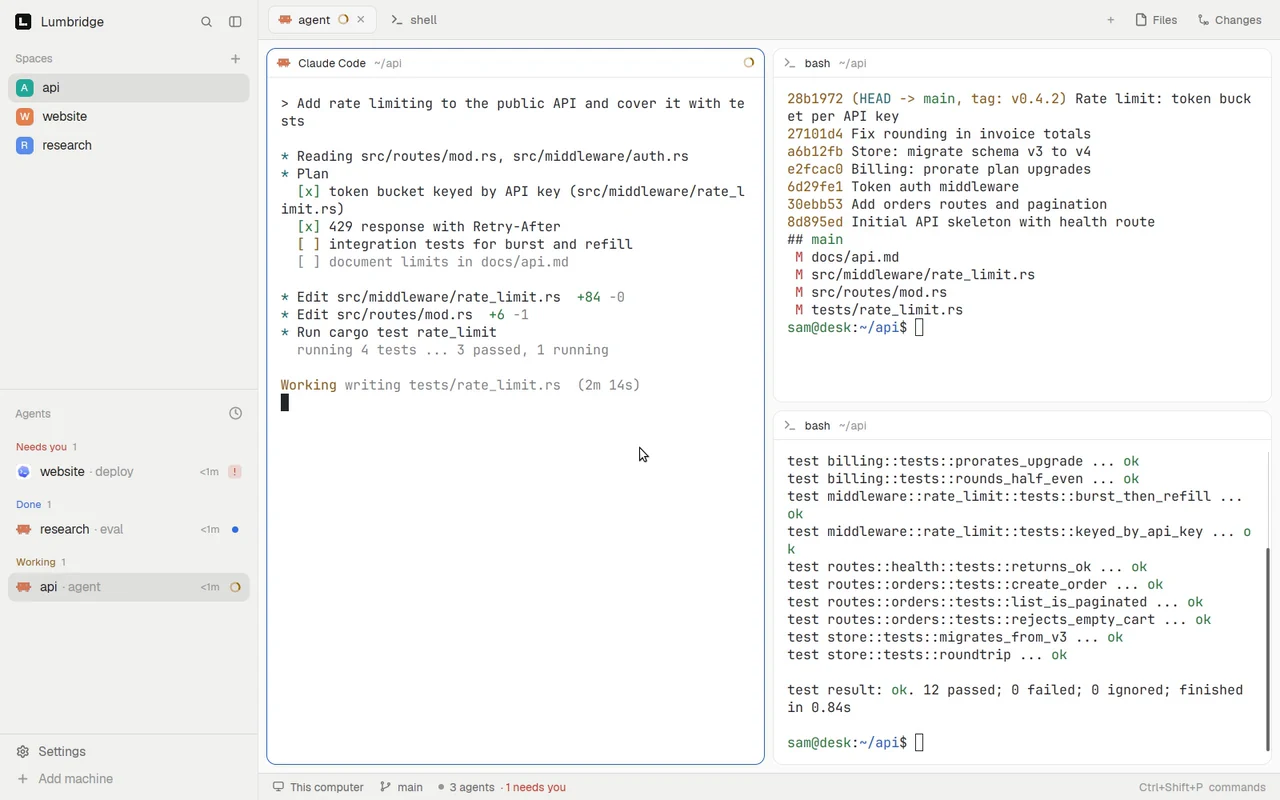
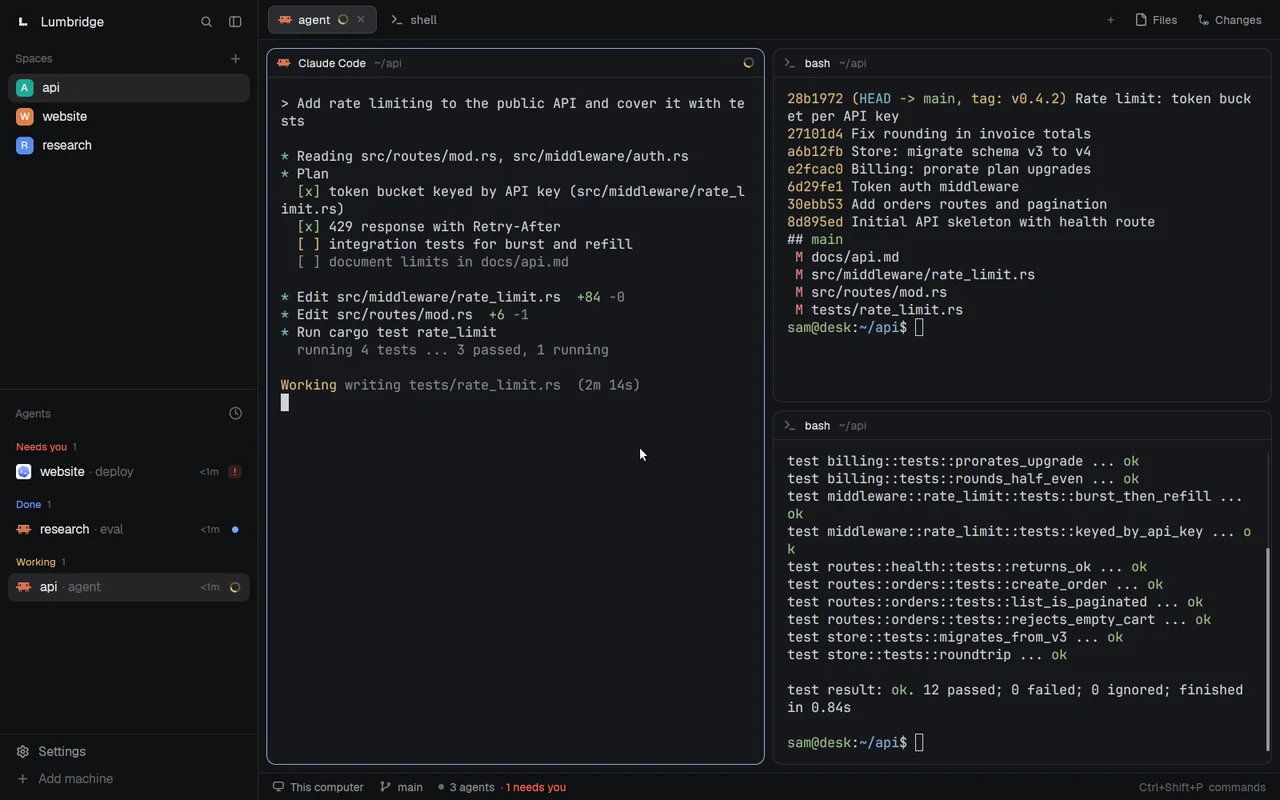
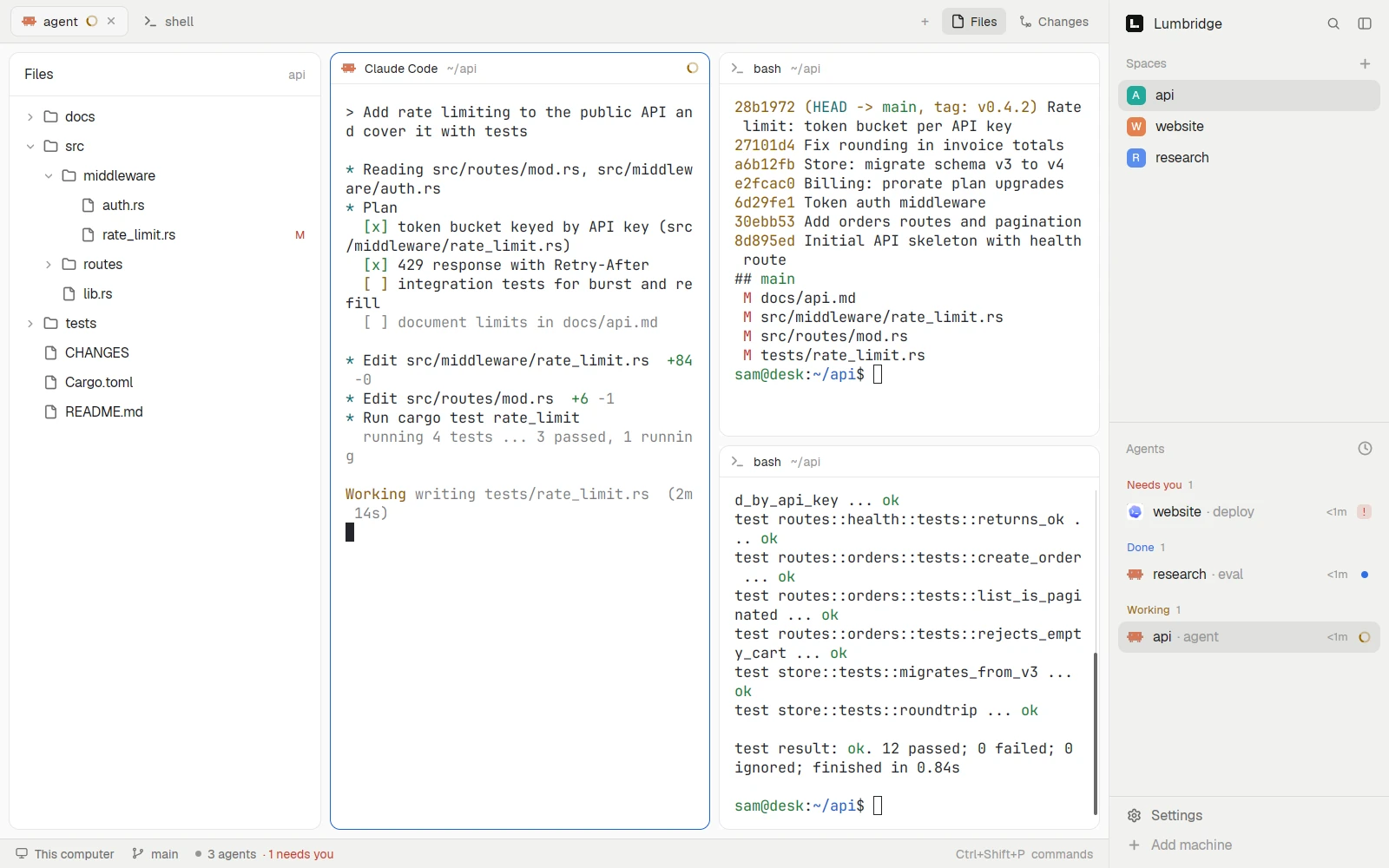
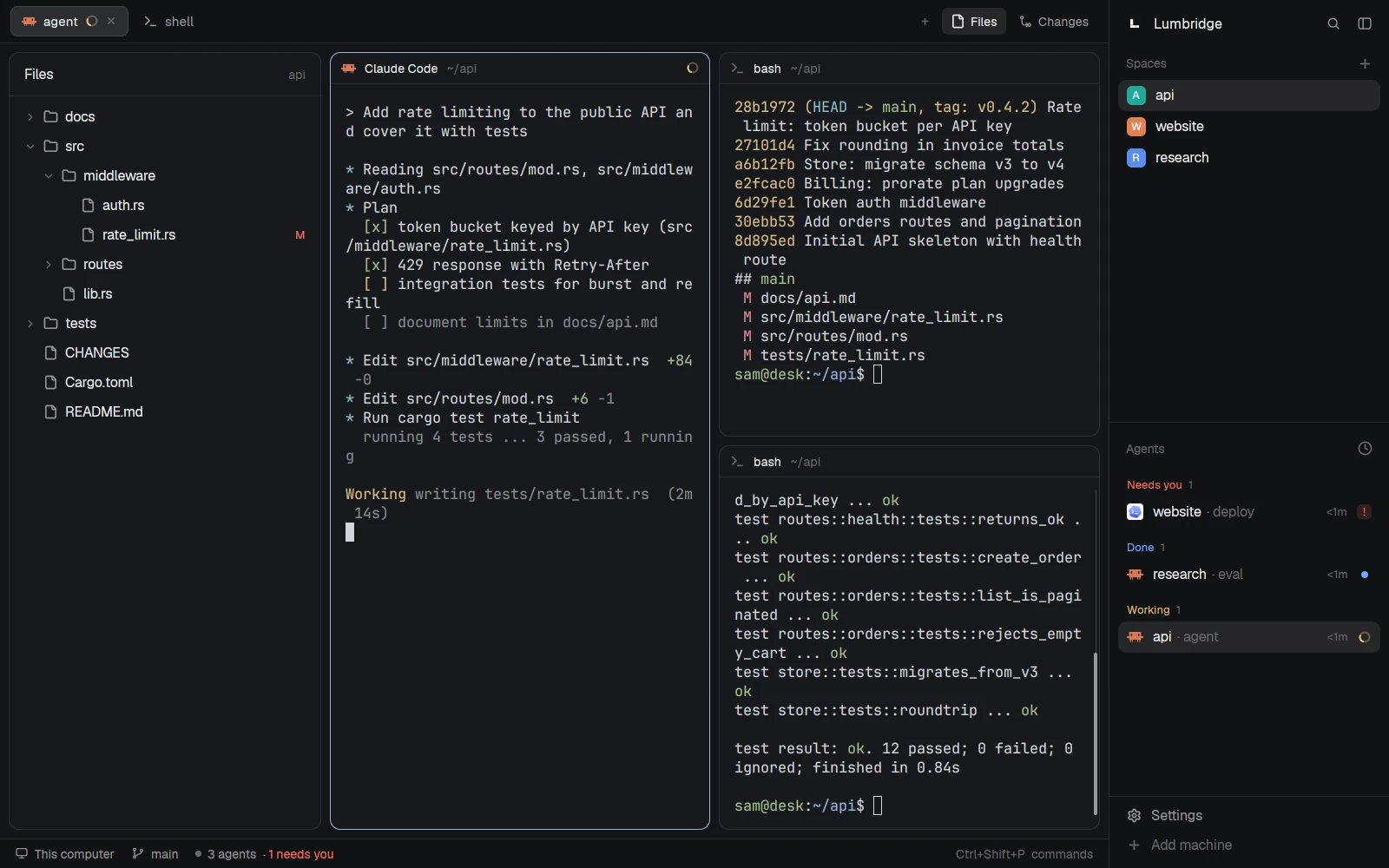
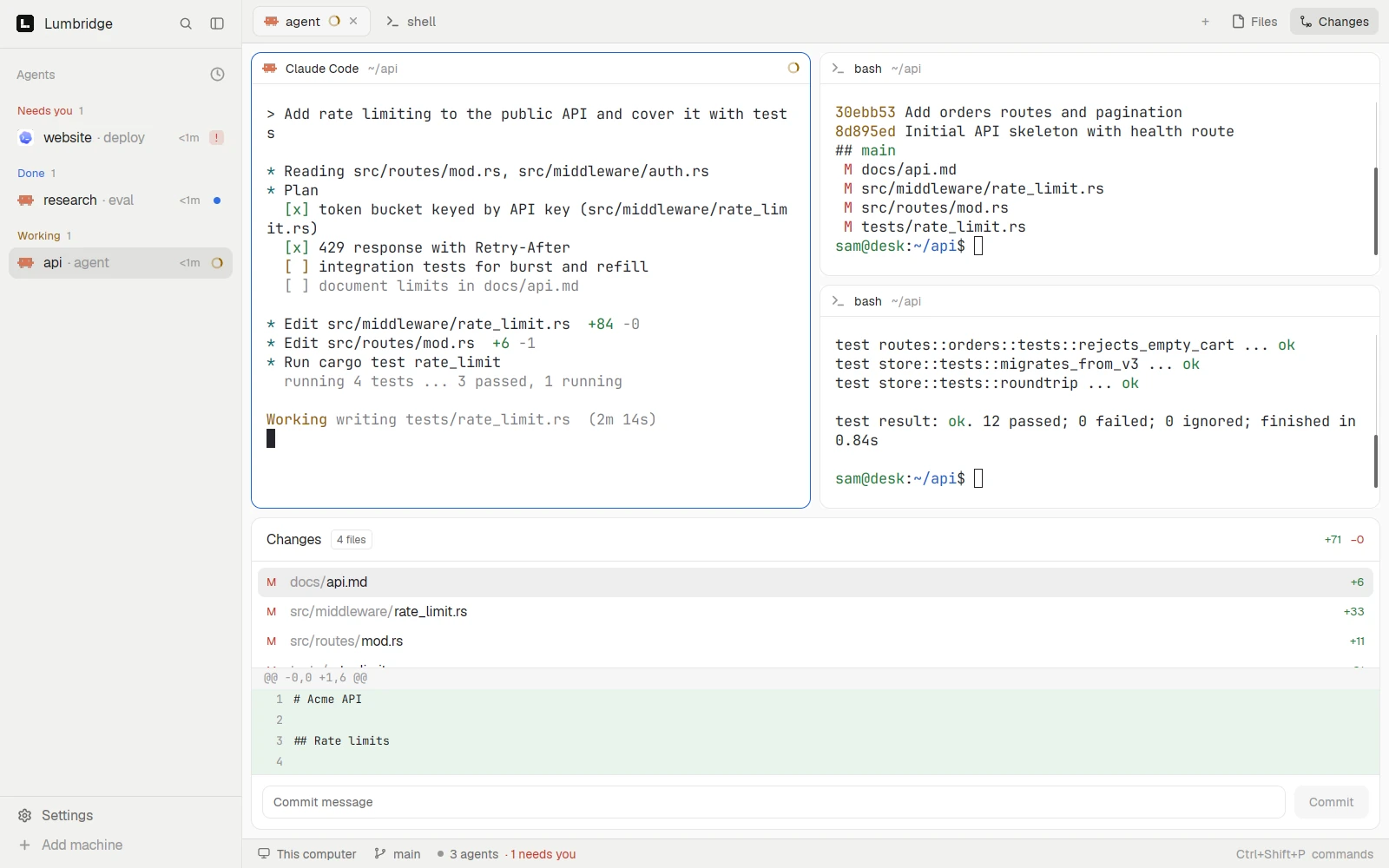
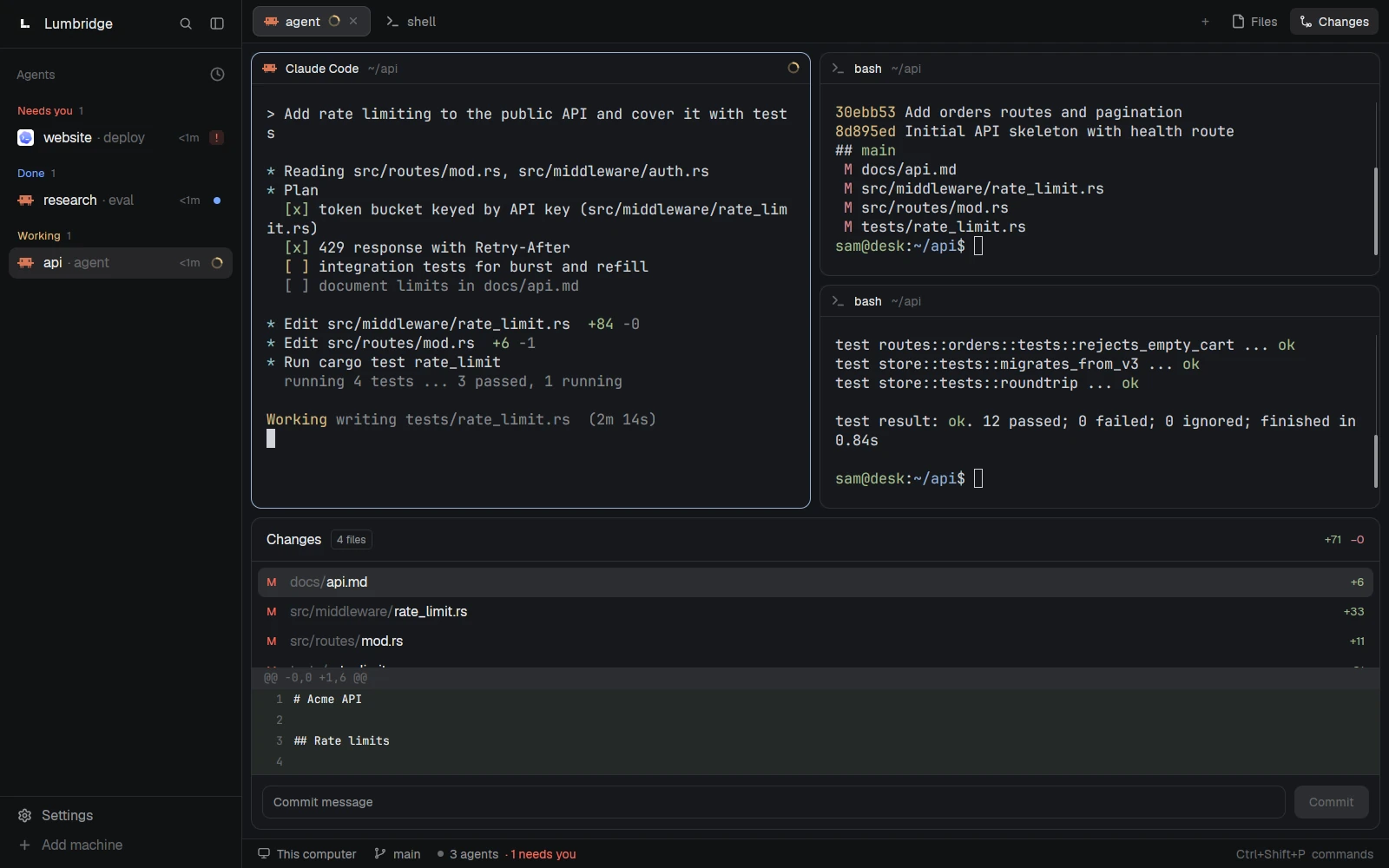
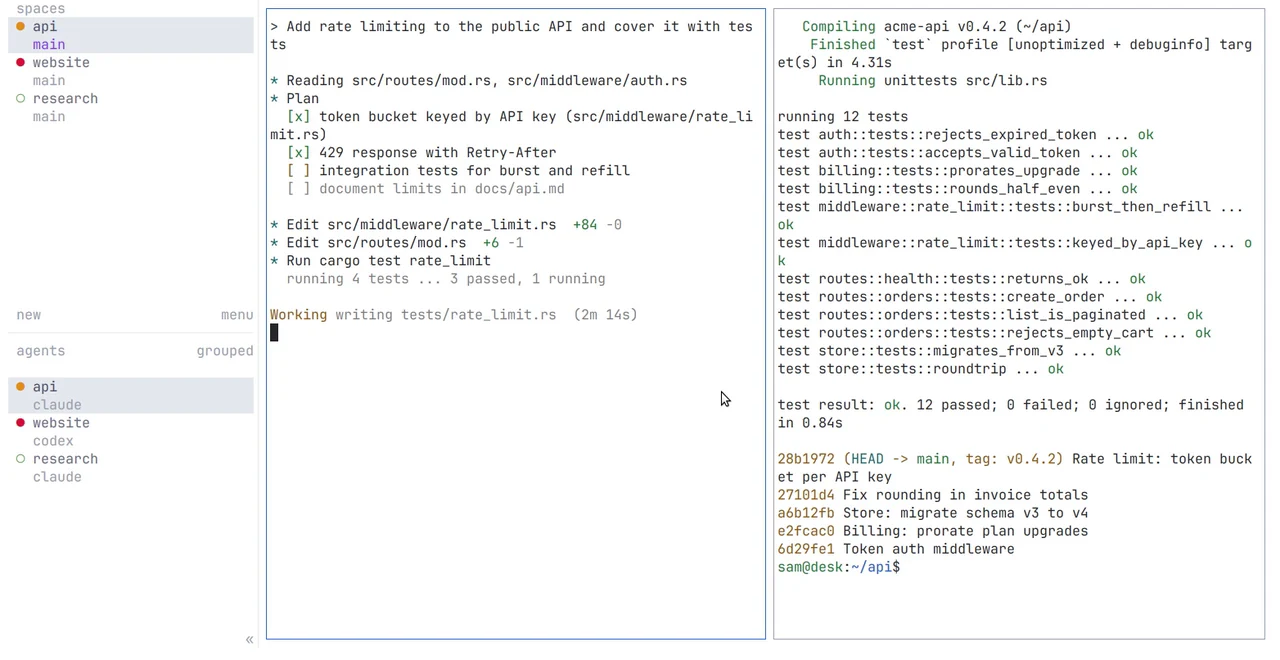
The App finds lumbridge-core on your PATH and connects to it. A space holds work on one machine, usually in one repository. Each space has tabs, and a tab splits into panes that show terminals side by side. Closing the window leaves every terminal running. Closing a pane or a tab ends its terminals. Ctrl+Shift+P shows every command and its key.
- Working: the agent is busy.
- Blocked: the agent is waiting for you. This is the one to answer first.
- Done: it finished while you were looking elsewhere.
- Idle: it is not working, or it finished and you have looked at it.
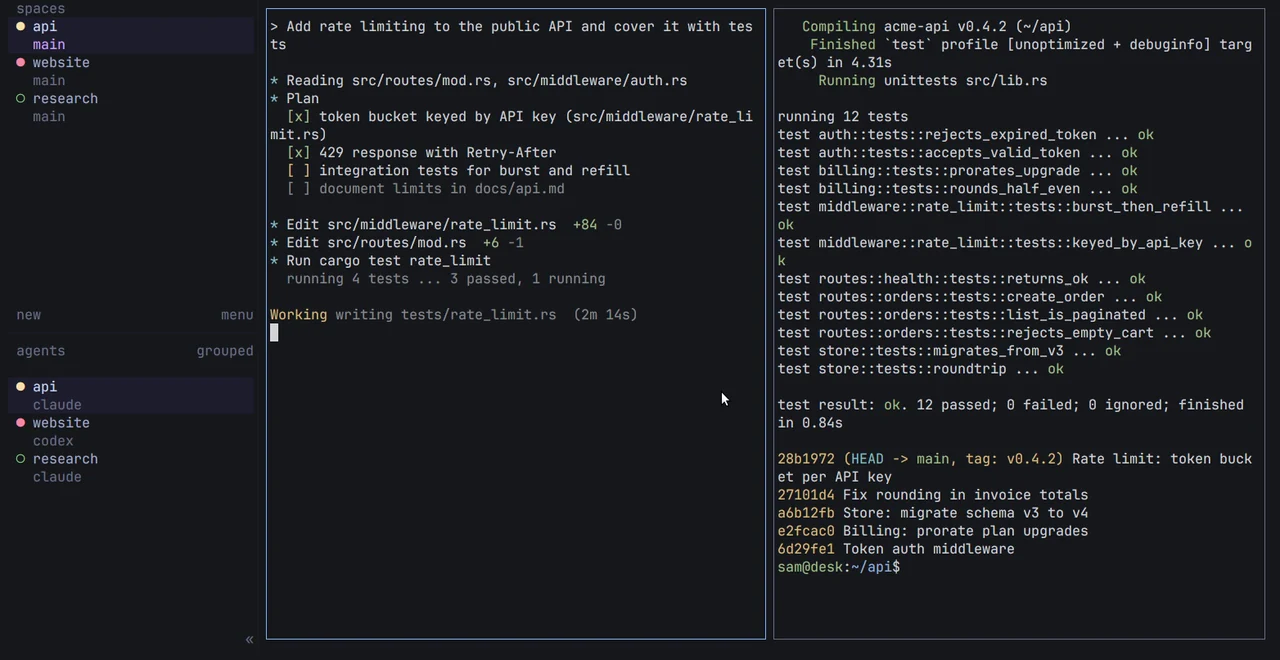
The sidebar gathers the agents from all your spaces into one list with these four states, including workers that another agent started. A space and a tab show the most urgent state of the agents inside them, so a blocked agent is visible from anywhere. Click an agent to go to it.
lumbridge-app ls
lumbridge-app status
lumbridge-app do space.new --name api --folder ~/acme/api
lumbridge-app do tab.new --name "fix login"
lumbridge-app do pane.split --direction right
lumbridge-app commands
Build and install the TUI
git clone --recurse-submodules https://github.com/lumbridge-corp/lumbridge-tui
cd lumbridge-tui
cargo build --release
install -m 755 target/release/lumbridge-tui ~/.local/bin/
lumbridge-tui --version
lumbridge-tui
# ctrl+b then q detaches. Run lumbridge-tui again to come back.
lumbridge-tui workspace create --cwd ~/acme/api --label api
lumbridge-tui agent list
lumbridge-tui server stop
The first lumbridge-tui starts a background server and attaches to it. A workspace is a project, with tabs and panes inside. The mouse works everywhere. For the keyboard, press ctrl+b and then a key: v splits right, - splits down, c makes a tab, w moves between workspaces, q detaches and ? lists every binding. The sidebar shows each agent as working, blocked, done or idle.
The next chapter runs a coding agent in a Core terminal, lets it hand work to a second agent, and shows how you step in.
Parts in this chapter Lumbridge App · Lumbridge TUI · Lumbridge Core